Tech
How to Optimize Your Home Wi-Fi for Better Performance

Updated Published

Practical ways to get faster, more reliable Wi-Fi at home: where to put your router, which settings and updates matter, how to secure your network, and how to fix common problems.
On this page
Having a strong and reliable wireless connection is essential for today’s digital lifestyle. Whether you’re streaming, gaming, or working remotely, a well-configured network can make all the difference. While setting up your router is the first step, there’s much more you can do to enhance its performance.
Modern devices and advanced router technologies offer features that can significantly boost your internet experience. From firmware updates to strategic placement, small adjustments can lead to big improvements. This guide will walk you through the essentials of optimizing your setup for seamless connectivity.
You’ll learn how to choose the right hardware, secure your network, and troubleshoot common issues. By the end, you’ll have the tools to create a faster, more reliable connection for all your devices. Let’s dive in and unlock the full potential of your internet setup!
Key Takeaways
- Proper router setup is just the beginning of optimizing your network.
- Advanced configurations can significantly improve performance.
- Regular firmware updates enhance router efficiency.
- Strategic hardware placement boosts signal strength.
- Securing your network ensures safe and reliable connectivity.
- Troubleshooting tips can resolve common connectivity issues.
Assessing Your Home Network Environment
Understanding your current network setup is the first step to improving its performance. A thorough assessment helps identify weak spots and areas for enhancement. This process ensures your devices receive the best possible signal and speed.
Identifying Signal Interference and Obstacles
Many factors can disrupt your connection. Walls, metal objects, and even household appliances can weaken the signal. Neighboring networks and electronic devices also contribute to interference.
To minimize these issues, consider the layout of your space. Move your router away from thick walls or large metal objects. This simple adjustment can significantly improve your internet speed.
Mapping Out Dead Zones
Dead zones are areas where the signal is weak or nonexistent. Identifying these spots is crucial for optimizing your network. Use tools like speed tests or monitoring apps to measure connection strength throughout your space.
Create a visual diagram of your home, marking areas with poor performance. This map will guide you in repositioning your router or adding extenders for better coverage.
| Obstacle | Impact on Signal |
|---|---|
| Thick Walls | Reduces signal strength significantly |
| Metal Objects | Blocks or reflects signals |
| Electronic Devices | Causes interference and slows speed |
| Neighboring Networks | Overlaps channels, reducing performance |
By addressing these challenges, you can create a more reliable and efficient network. Start your assessment today and enjoy a smoother online experience.
Selecting the Right Router and Equipment
Not all routers are created equal—selecting the right one matters. Your choice of hardware can significantly impact your network’s performance, from speed to coverage. With options like Wi-Fi 5, Wi-Fi 6, and mesh systems, understanding the differences is key to making an informed decision.
Comparing Wi-Fi 5, Wi-Fi 6, and Mesh Systems
Wi-Fi 5 routers are reliable and widely available, offering decent speeds for everyday use. However, Wi-Fi 6 takes things a step further with improved bandwidth and efficiency, especially in crowded areas. If you have multiple devices, Wi-Fi 6 ensures smoother performance.
Mesh systems, on the other hand, are ideal for larger spaces. They use multiple nodes to provide seamless coverage, eliminating dead zones. While more expensive, they’re perfect for homes with challenging layouts.
Budget vs. High-End Options
Budget-friendly routers like TP-Link models offer solid performance for basic needs. They’re a great starting point for smaller households. High-end options from brands like Asus and eero deliver advanced features, such as better range and faster speeds, making them worth the investment for power users.
When choosing, consider your bandwidth requirements and the size of your space. A mesh system might be overkill for a small apartment but essential for a multi-story home.
Don’t overlook the importance of cable quality. Ethernet cables can provide a stable connection for devices that need consistent speeds, like gaming consoles or smart TVs. Pairing the right router with high-quality cables ensures optimal performance.
For more tips on optimizing your setup, check out this comprehensive guide. Choosing the right equipment is the first step toward a faster, more reliable network.
Home Wi‑Fi Optimization: Implementing Strategies
Improving your network’s efficiency starts with smart strategies and practical adjustments. From where you place your router to the cables you use, every detail matters. These steps ensure your devices get the best possible connection, whether you’re streaming, gaming, or working.
Optimizing Router Placement for Better Coverage
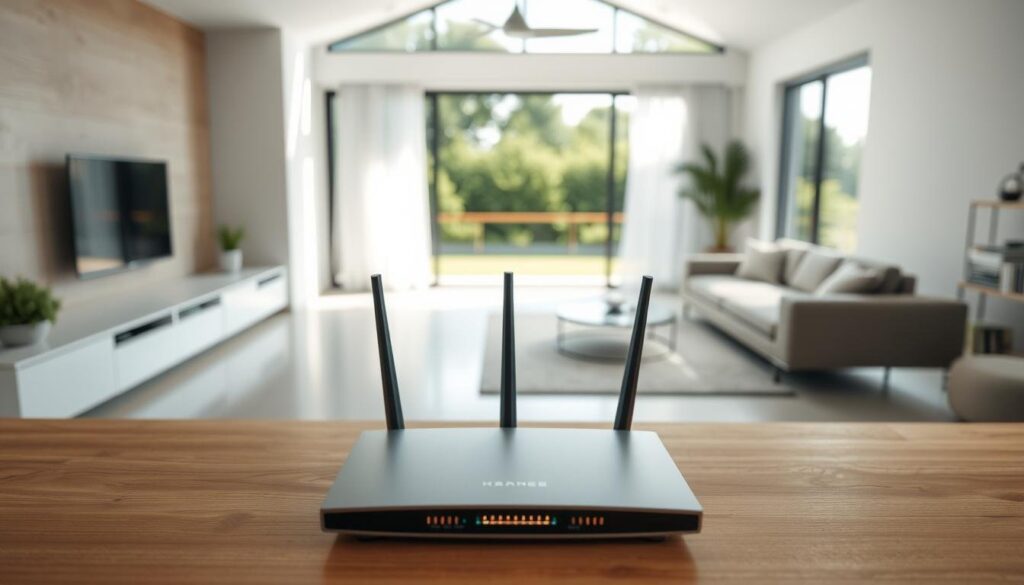
Where you place your router can make or break your network’s performance. For the best results, keep it in a central, open location. Avoid enclosed spaces like closets or cabinets, as they block signals and reduce coverage.
Physical obstacles like walls and furniture can weaken your wireless connection. Moving your router to a higher position, such as a shelf, can also improve signal strength. Taking the time to reposition your router can lead to noticeable improvements in speed and reliability.
Utilizing Ethernet Cables for Stable Connections
While wireless technology has advanced, ethernet cables remain a reliable choice for stable connections. They’re especially useful for high-bandwidth devices like gaming consoles or smart TVs. Using ethernet cables reduces interference and ensures consistent speeds.
Modern technology offers flexibility, but hardwiring devices can still enhance performance. For example, connecting your work computer directly to the router can minimize lag during video calls. It’s a simple yet effective way to optimize your setup.
| Strategy | Benefit |
|---|---|
| Central Router Placement | Maximizes coverage and minimizes dead zones |
| Elevated Positioning | Improves signal strength and range |
| Ethernet Cable Usage | Ensures stable, interference-free connections |
| Hardwiring High-Bandwidth Devices | Boosts speed and reliability for demanding tasks |
By focusing on these strategies, you can significantly enhance your network’s performance. Take the time to assess your setup and make the necessary adjustments. A well-optimized network ensures a seamless online experience for all your devices.
Configuring Your Router for Maximum Performance
Configuring your router properly is a game-changer for network performance. A few adjustments can significantly boost speed, reliability, and security. Whether you’re a tech enthusiast or a beginner, these steps will help you get the most out of your setup.
Setting Up Secure Logins and Changing Defaults
One of the first steps is to change the default login credentials. Most routers come with generic usernames and passwords, which are easy targets for hackers. Access your router’s configuration page by entering its IP address in your browser. Once there, update the username and password to something unique and strong.
Next, enable security features like WPA3 encryption. This ensures your network is protected from unauthorized access. If your router doesn’t support WPA3, WPA2 is a solid alternative. These measures are essential for safeguarding your data and devices.
Enabling Auto-Configuration and Firmware Updates
Modern routers often come with auto-configuration tools. These wizards guide you through essential settings, making the process user-friendly. Use these tools to set up security protocols, assign network names, and configure passwords.
Regular firmware updates are another critical point. Manufacturers release updates to fix bugs, improve performance, and patch vulnerabilities. Check for updates in your router’s settings menu and enable automatic updates if available. This ensures your router stays up-to-date with the latest features and protections.
- Access the router’s configuration page to change default credentials.
- Enable strong encryption like WPA3 or WPA2 for enhanced security.
- Use auto-configuration tools to simplify the setup process.
- Regularly update firmware to maintain optimal performance.
By following these steps, you’ll create a secure and efficient network. For more tips, check out this comprehensive guide. A well-configured router not only improves performance but also ensures your connection remains safe and reliable.
Tuning Wi‑Fi Channels, Bands, and Frequencies
Choosing the right frequency and channel settings can significantly enhance your network’s performance. Whether you’re streaming, gaming, or working, understanding these elements ensures a smoother experience. Let’s dive into the details to help you make informed decisions.
Understanding 2.4GHz, 5GHz, and 6GHz Differences
The 2.4GHz band is widely used and offers better range, making it ideal for larger spaces. However, it’s more prone to interference from other devices like microwaves and cordless phones. This can slow down your connection in crowded areas.
The 5GHz band provides faster speeds and less interference, perfect for high-bandwidth activities like streaming or gaming. However, its range is shorter, so it’s better suited for smaller spaces or devices closer to the router.
The emerging 6GHz band takes performance to the next level. It offers even faster speeds and more available channels, reducing congestion. While not all devices support it yet, it’s a great option for future-proofing your setup.
Manual Versus Auto Channel Selection
Auto channel selection is convenient and works well for most users. Your router automatically scans for the least congested channel, ensuring optimal performance. This is a great option if you’re not tech-savvy or prefer a hands-off approach.
Manual channel selection gives you more control. Using diagnostic tools, you can identify the best channel for your environment. This is especially useful in areas with many neighboring networks, as it minimizes interference and improves throughput.
Consider factors like channel width when making your choice. Wider channels offer higher speeds but are more susceptible to interference. Narrower channels provide stability, making them ideal for crowded areas.
For the best results, evaluate your space and device compatibility. If you have a mix of older and newer devices, using both 2.4GHz and 5GHz bands can ensure all your devices perform well. For advanced users, experimenting with manual channel settings can unlock even greater potential.
Leveraging Advanced Wireless Settings
Maximizing your network’s potential requires diving into advanced wireless settings. These features allow you to fine-tune performance, ensuring smooth streaming, gaming, and remote work. One of the most powerful tools at your disposal is Quality of Service (QoS).
Implementing Quality of Service (QoS)
Quality of Service (QoS) is a system that prioritizes network traffic based on your needs. It ensures critical applications, like video calls or online gaming, get the bandwidth they require. This reduces lag and improves overall performance.
To configure QoS, access your router’s settings interface. Look for the QoS section, where you can assign priority levels to specific devices or applications. For example, you can prioritize your gaming console over other devices during peak hours.
Here’s a quick guide to accessing QoS settings:
- Log into your router’s admin panel using its IP address.
- Navigate to the QoS or Traffic Management section.
- Enable QoS and assign priorities to devices or applications.
A well-configured QoS system offers several benefits. It ensures smoother streaming, reduces latency during gaming, and improves productivity for remote work. By tailoring your network’s settings, you can create a personalized experience that meets your specific needs.
| Activity | QoS Benefit |
|---|---|
| Gaming | Reduces lag and improves responsiveness |
| Streaming | Ensures buffer-free video playback |
| Remote Work | Prioritizes video calls for clear communication |
| File Downloads | Manages bandwidth to avoid slowing other tasks |
Take the time to explore these advanced features. A well-optimized network ensures a seamless experience for all your devices and activities.
Enhancing Coverage with Mesh Networks and Range Extenders
Expanding your network’s reach can transform your online experience. Whether you’re dealing with dead zones or uneven coverage, solutions like mesh systems and range extenders can make a significant difference. These tools ensure every corner of your space has reliable access to your network.
When to Use Mesh Systems
Mesh systems are ideal for larger spaces or multi-story homes. They use multiple nodes to create a seamless network, eliminating dead zones and providing consistent coverage. Unlike traditional routers, mesh systems work together to ensure smooth transitions as you move from room to room.
For example, if you have a smart home with devices spread across different floors, a mesh system ensures uninterrupted service. It’s also a great way to handle high-bandwidth activities like streaming or gaming in every corner of your space.
Benefits of Wireless Range Extenders
Range extenders are a cost-effective way to boost coverage in specific areas. They work by amplifying the signal from your existing router, making them perfect for smaller spaces or single dead zones. While they don’t offer the same seamless experience as mesh systems, they’re simpler to set up and more budget-friendly.
For instance, if your home office is far from the router, a range extender can ensure you have reliable access for work. They’re also a good option if you only need to enhance coverage in one or two rooms.
| Solution | Best Use Case | Cost | Complexity |
|---|---|---|---|
| Mesh Systems | Large homes, multi-story spaces | Higher | Moderate |
| Range Extenders | Smaller spaces, single dead zones | Lower | Low |
When choosing between these solutions, consider your space and needs. Mesh systems offer a higher standard of coverage but come at a higher cost. Range extenders are a simpler way to address specific issues without breaking the bank.
By selecting the right tool, you can ensure every device in your space has reliable access to your network. Whether you opt for a mesh system or a range extender, improving your coverage is a smart way to enhance your online experience.
Securing Your Home Wi‑Fi Network
Protecting your network from unauthorized access is crucial in today’s connected world. With the increasing number of devices in our homes, ensuring your setup is secure can prevent potential threats. From firmware updates to advanced encryption, these steps will help you safeguard your connection.
Updating Firmware and Setting Up Encryption
Regularly updating your router’s firmware is a simple yet effective way to enhance security. Manufacturers release updates to patch vulnerabilities and improve performance. Check your router’s settings menu for the latest firmware and enable automatic updates if available.
Setting up strong encryption is another essential step. Use WPA3 or WPA2 protocols to protect your network from intruders. Access your router’s configuration page to enable these features and ensure your data remains safe.
Applying Guest Network and MAC Filtering Options
A guest network is a great option for visitors. It keeps your primary network secure while allowing others to connect. Set up a separate SSID and password for the guest network in your router’s settings.
MAC filtering adds an extra layer of security by controlling which devices can access your network. Each computer or device has a unique MAC address. Add trusted devices to the allowed list in your router’s configuration to prevent unauthorized access.
By implementing these measures, you can create a secure and reliable network. Keep your devices and software up to date to ensure ongoing protection. A well-protected setup ensures peace of mind and optimal performance for all your connected devices.
Monitoring, Testing, and Troubleshooting Performance
Keeping your network running smoothly requires regular checks and smart tools. Monitoring your connection helps identify issues before they become major problems. By using the right tools and techniques, you can ensure your setup remains fast and reliable.
Using Speed Tests and Traffic Monitoring Tools
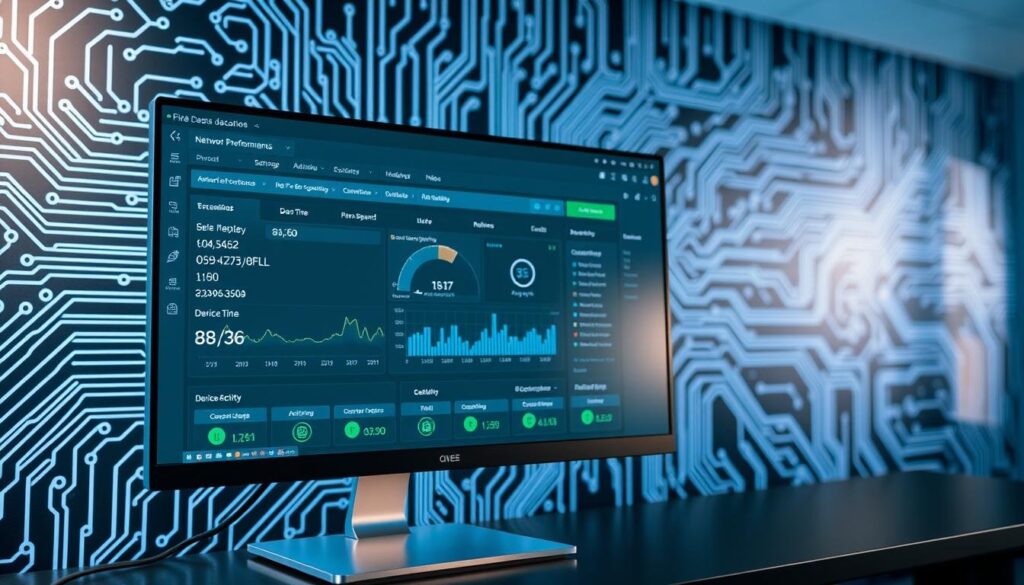
Speed tests are a quick way to measure your connection’s performance. Tools like Ookla or Fast.com provide accurate results in seconds. Regular testing helps you spot slowdowns and take action before they affect your activities.
Traffic monitoring tools give deeper insights into your network’s usage. Applications like GlassWire or NetWorx track bandwidth consumption by device or app. This helps you identify which user or thing might be hogging resources.
Troubleshooting Common Issues
If your performance drops, start by rebooting your router. This simple step often resolves temporary glitches. Next, check for interference from other devices or networks. Moving your router or changing its port settings can help.
For persistent issues, assess your bandwidth usage. Limit high-bandwidth activities during peak hours. Tools like QoS (Quality of Service) can help you control traffic and prioritize critical tasks.
Balancing Network Load
Ensuring each user gets a fair share of bandwidth is key. Use your router’s settings to allocate resources evenly. For example, assign higher priority to work devices during the day and gaming consoles in the evening.
By regularly monitoring and adjusting your setup, you can maintain optimal performance. A well-managed network ensures a seamless experience for everyone.
Conclusion
Achieving a seamless online experience starts with understanding and fine-tuning your network setup. From selecting the right equipment to optimizing router location, small changes can make a big difference. Whether you’re streaming a video or working during peak hours, these adjustments ensure a smoother connection.
Reassessing your setup periodically is key. As technology evolves, so should your network. Even minor tweaks, like updating firmware or repositioning your router, can yield good results. These steps help you stay ahead of potential issues and maintain reliable performance.
We encourage you to share your experiences and tips. Building a robust network is a collaborative effort, and your insights can help others achieve a good connection too. Start implementing these strategies today and enjoy a faster, more reliable online experience.
FAQ
How can I identify signal interference in my network?
Look for devices like microwaves, cordless phones, or neighboring networks that might disrupt your connection. Moving your router away from these can help reduce interference.
What’s the difference between Wi-Fi 5 and Wi-Fi 6?
Wi-Fi 6 offers faster speeds, better performance in crowded areas, and improved efficiency compared to Wi-Fi 5. It’s ideal for modern devices and high-bandwidth activities.
Should I use a mesh system or a range extender?
Mesh systems are great for large spaces, providing seamless coverage. Range extenders are more budget-friendly but may create separate networks with weaker signals.
How do I optimize my router’s placement?
Place it in a central location, elevated off the floor, and away from walls or obstructions. This ensures better coverage throughout your space.
Why should I use Ethernet cables?
Ethernet cables provide a stable, faster connection compared to wireless, making them ideal for devices like gaming consoles or smart TVs.
How do I secure my network?
Update your router’s firmware, set up strong passwords, enable WPA3 encryption, and use guest networks to keep your connection safe.
What’s the benefit of using 5GHz over 2.4GHz?
The 5GHz band offers faster speeds and less interference, while 2.4GHz provides better range but slower performance in crowded areas.
How does Quality of Service (QoS) improve my network?
QoS prioritizes important traffic like video calls or gaming, ensuring smoother performance for these activities.
How often should I update my router’s firmware?
Check for updates every few months or enable auto-updates to ensure your router has the latest security patches and features.
What tools can I use to test my internet speed?
Use tools like Ookla’s Speedtest or Fast.com to measure your connection speed and identify potential issues.